PRACTICAL HELP FOR MAKERS IN GREAT BRITAIN
Print your labels at home.
Choose your printing route and follow it from the Builder to the finished label. No cutting machine needed to get started. If you do not own a printer, follow the separate print-company guide.
How would you like to print?
Build & review
From label size and SDS information to the final review.
Follow this guide →02One label on A4
Print just one label using the Composer.
Follow this guide →03A4 label sheets
Repeat one fragrance or mix saved designs.
Follow this guide →04Individual PDF
Open the print view, print directly or save a file.
Follow this guide →05Cricut Print Then Cut
Use individual PNGs or a cutting-machine ZIP.
Follow this guide →06PNG in other software
Set the physical dimensions after importing.
Follow this guide →07SVG compatibility
Check what imports correctly and when to use PNG.
Follow this guide →08Phone or tablet
Find, share and print your downloaded files.
Follow this guide →09No printer at home?
Download your artwork and arrange printing with a company of your choice.
Follow this guide →Already downloaded your file?
Find it on your computer, identify the file type or extract a ZIP before you print.
Find my file →Before it goes on your product
Measure the print, inspect every line and symbol, then check the material and adhesive on the actual packaging.
Use the final print checklist →STEP-BY-STEP GUIDE
Build and review your label
Start here before choosing a printing route. Keep your current, applicable supplier documentation beside you.
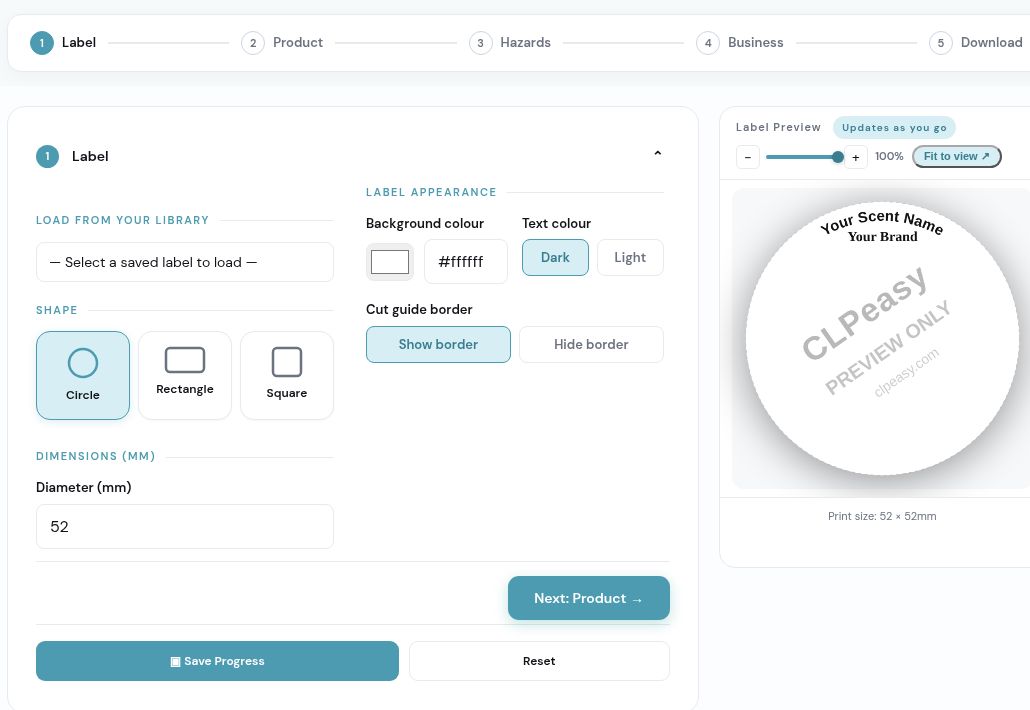
Choose your shape and physical size
Open Create Label. In Step 1, choose the shape and enter the dimensions in millimetres. Measure the space on the packaging first. Select a size that accommodates the complete label.
Choose the border appearance
Use Show border or Hide border as preferred. The optional cut guide is printed artwork; it is not a machine registration mark.
Enter your product details
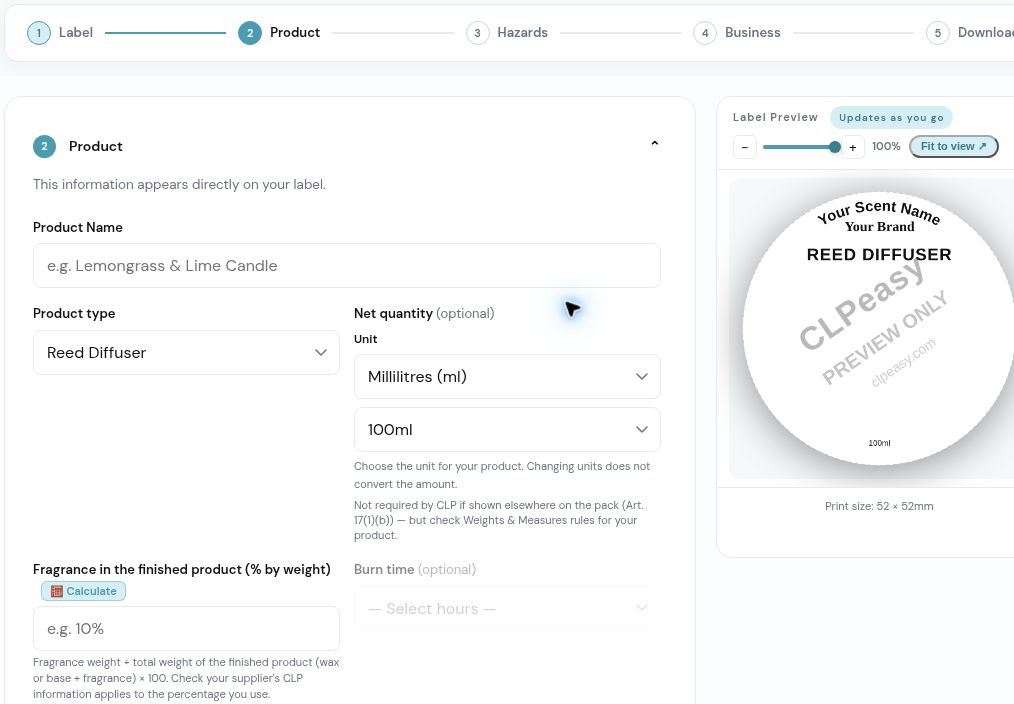
In Step 2, enter the product name and select the product type. For net quantity, select Grams (g) for weight or Millilitres (ml) for liquid volume, then choose the amount or enter an exact quantity. Reed diffusers and room sprays commonly use ml. Changing the unit does not convert the amount. The fragrance percentage field remains % by weight. Add applicable optional details, then continue to Hazards.
Provide the appropriate SDS information
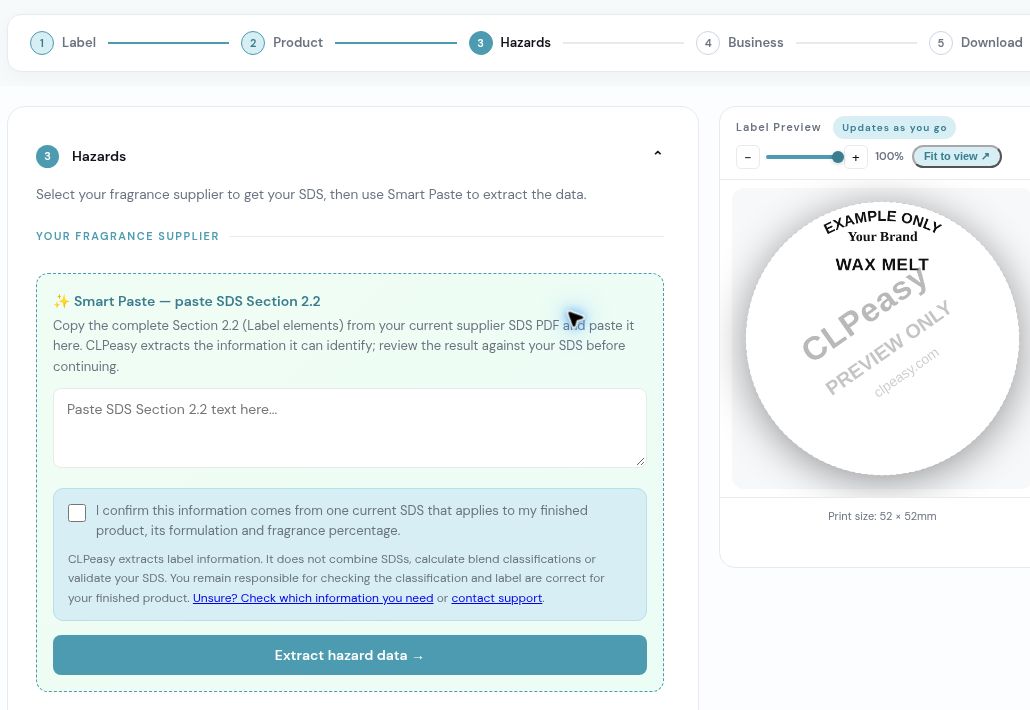
In Step 3, copy the complete Section 2.2 from the applicable current SDS. Read the source confirmation and confirm it only when it is true. Select Extract hazard data.
Review what was extracted
Compare all extracted information with the source. If something is missing, different, unsupported or blocked, pause and use the linked guidance or contact support. Do not combine statements from different SDSs or use an unsuitable document just to continue.
Add your business details
In Step 4, complete the required business name, address and phone fields. Add optional details where applicable. These are the details for the supplier placing the product on the market, which may be your own making business.
Resolve size and fit warnings
Review the complete label and any warnings. Increase or change the supported label layout when needed. Do not bypass a block by deleting required information.
Complete the final review
In Step 5, compare the final preview with your applicable source information and product details. Tick the final confirmation only after you have completed the checks. Select Save to library if you want to use the Composer or reopen the design later.
STEP-BY-STEP GUIDE
Choose, download and find your file
PDF, PNG, SVG and ZIP take different routes. Use the file that matches what you want to do.
The PDF control opens a print view. Use its Print / Save as PDF button to print or save a PDF file.
PNG
An image download. Useful for Print Then Cut or placing in other software. Recheck physical dimensions after import.
SVG / ZIP
SVG is artwork for compatible software. A cutting-machine ZIP contains individual PNGs and must be extracted first.
Find it on Windows
Open your browser’s Downloads list
In Chrome or Edge on Windows, Ctrl + J opens Downloads. Look for the newest completed file. Use Show in folder or the folder icon if available.
Check the folder and file type
Alternatively, open File Explorer and select Downloads. Sort by date if needed. Check whether the file is a .pdf, .png, .svg or .zip. The file icon alone can be misleading: an SVG may show a browser icon.
If you saved a PDF manually
Open the folder you chose in the Save dialog. If you only selected a real printer, you may not have saved any PDF file at all.
Find it on Mac
Use the browser download list
In Safari, open the Downloads list and use the magnifying-glass control beside the file to reveal it in Finder. In another browser, use its Downloads menu.
Check Finder
Open Downloads, or the destination selected when saving. Sort by date and open the latest file. [F2, F3]
Open a cutting-machine ZIP
Windows: extract the files
Right-click the .zip file, choose Extract All and follow the prompts. Open the extracted folder. Upload the individual PNGs, not the ZIP container. [F6]
Mac: expand the ZIP
Double-click the .zip file in Finder. Open the resulting folder and use its PNGs. [F7]
STEP-BY-STEP GUIDE
Print one label on an A4 sheet
Use this route when you want one label positioned on a normal A4 printable sheet or on matching pre-cut stock.
Save the reviewed label
Complete the Builder review and select Save to library. Use the same browser and device when opening the Composer.
Open Print Sheet Composer
Use the Builder link or the sidebar link. Choose your saved label and a sheet template/custom layout that matches your stock. The label retains its saved size.
Set the quantity to one
Add one copy of the chosen design. Check the position in the sheet preview. Do not assume that one label automatically prints in a particular corner without checking.
Match the physical sheet
For pre-cut labels, match their exact dimensions, positions, margins and gaps. For full adhesive sheets that you will cut yourself, use a layout inside your printer’s printable area.
Print a paper test
Choose Print / Save as PDF. In the new print view, choose the real printer or save the A4 PDF for later. Select A4 and Actual Size / 100%; turn off Fit or Shrink.
Measure, align and finish
Measure the paper test. For pre-cut stock, hold it against the label sheet to check placement. Print onto compatible stock only after it matches. Cut by hand if needed and check attachment on the packaging.
STEP-BY-STEP GUIDE
Print repeated or mixed A4 labels
Use the Composer for a batch of one fragrance or several saved fragrance labels on the same sheet.
Save each design first
Review and save each label in the Builder. Reopen the Composer in the same browser. If no labels appear, confirm you are using the browser/device and account used when saving them.
Choose the sheet layout
Select an exact matching template or configure a Custom sheet. Check the stock specification: label width/height, rows, columns, margins and gaps. The Composer does not resize a label just to make it fit.
Add your quantities
Choose the copies of each saved design you need. Read the filled/remaining totals and inspect the preview. If the grid or any label fails its fit check, fix the layout or label in CLPeasy before export.
Check the paper and stock
A4 is 210 × 297 mm. Do not choose US Letter for an A4 file. A matching label diameter alone is not enough to establish that a pre-cut sheet matches the layout.
Print or save the PDF
Choose Print / Save as PDF. Use the new print view to select your printer or save an A4 PDF. When opening the saved PDF later, keep A4 and Actual Size / 100%.
Test before using adhesive stock
Print one paper test. Measure a known label and check alignment across the whole sheet, including the bottom row. Then print the required copies on permitted stock.
Partly used sheets
Check whether reuse is permitted
Read the printer and stock instructions. If refeeding a partly used sheet is prohibited, use a fresh sheet. Adhesive backing and missing labels can affect feeding.
Match the used positions
If available, enter Labels already used on this physical sheet. This is a count of the first positions already used, not a tool for selecting scattered missing stickers. If the missing positions do not match the preview, use a fresh compatible sheet.
Keep the feed orientation consistent
Make sure the actual sheet enters in the orientation represented by the preview. Do not feed a randomly rotated sheet or adjust scaling to compensate for a mismatch.
STEP-BY-STEP GUIDE
Print an individual PDF label
Use this route when you want a single label-sized print view or a PDF to save for later. For placement on pre-cut A4 stock, use the Composer route instead.
Select PDF in the Builder
After final review, choose PDF. Depending on screen size, it may appear beside the preview or in the label-view controls. A new print view opens.
Select Print / Save as PDF
Use the button in the print view. To print immediately, choose your real printer. To keep a file, choose Save as PDF or the PDF destination available in your print dialog.
If saving: choose a location
Give it a recognisable name and remember the folder. Open the saved file from that folder or your browser’s Downloads list. A PDF saved manually may not go to Downloads automatically.
Preserve the physical dimensions
Use Actual Size / 100%, not Fit, Shrink or Scale to fit. The individual file has a label-sized page; your viewer/printer may place it on a larger sheet. Inspect the preview for clipping or an unsupported paper-size warning.
Use the A4 route if placement is uncertain
Do not force an unsuitable custom page through your printer. For a standard A4 label sheet, use Composer with quantity one, then print the A4 file unchanged.
Measure the paper test
Measure the label itself, not the paper page. It must match the intended size. Use compatible adhesive stock after a successful test.
Set the intended size
Centimetres: 6.3 cm
Inches: 63 ÷ 25.4 ≈ 2.4803 in
Keep proportions locked. Then measure a test.
STEP-BY-STEP GUIDE
Print a PNG through other software
Use this route when your chosen layout program needs an image. The key is setting its physical size after import.
Download the individual PNG
Complete the Builder review and select PNG. Locate the saved .png file using the file guide. Keep a note of the label dimensions shown in CLPeasy.
Insert the original file
In your chosen document or design program, insert/upload the PNG as a picture. Avoid using a screenshot, a messaging-app copy or a compressed preview.
Set width and height explicitly
Select the picture and find the program’s Size, Dimensions or Position controls. Enter the intended physical dimensions and keep the proportions locked. For a 63 mm circle, that is 63 × 63 mm, or 6.3 × 6.3 cm. The width field may include any imported padding, so check the visible label as well.
Position it on the page
Use the intended paper size and keep the complete label in the printable area. If placing it over pre-cut stock, use a layout matching that stock; a loose picture on a blank page will not automatically align.
Print without further resizing
Choose Actual Size / 100% where available. Disable image Fit, Fill, Crop and automatic enlargement. Ensure the label is not stretched or cropped.
Measure a paper test
Compare the printed width and height with the Builder dimensions. If the size changes or you cannot control it reliably, return to the PDF/Composer route.
Set the intended size
Centimetres: 6.3 cm
Inches: 63 ÷ 25.4 ≈ 2.4803 in
Keep proportions locked. Then measure a test.
STEP-BY-STEP GUIDE
Cricut: print and cut individual PNGs
For the Maker, Explore and Joy Xtra Print Then Cut workflow: use a compatible separate colour printer, then let the Cricut cut the outline.
1. Prepare your individual images
Choose single PNG or a Composer ZIP
For one design, use the Builder PNG. For several, use Download for cutting machine in the Composer, then Download as ZIP. Extract the ZIP before uploading. Each design is an individual image; the A4 arrangement is rebuilt in Design Space.
Open a new Design Space project
Choose Upload → Upload Image → Browse and select the PNG. Review the image preview. [C2]
Preserve the complete artwork
Do not remove the white areas inside hazard pictograms or within the label. Check the cut preview shows the required outer label shape. If it would cut letters or internal symbols, stop and correct the import/background setup.
Choose a printable image
Use Flat Graphic / Print Then Cut where offered, then add it to the canvas. Keep the image as complete printed artwork, rather than converting the safety text into separate cut shapes. [C2]
Check physical dimensions
Set the image to the original label dimensions, with proportions locked. For a 63 mm circle, use 63 × 63 mm. Do not assume the imported size is correct. Confirm that the measured artwork, including any padding, matches what you intend to cut.
Choose the number of copies
Duplicate as needed while keeping each label at the same intended size. If Design Space reports the layout is too large, reduce copies or select a supported larger paper size. Do not automatically shrink the safety label. [C4]
Set the intended size
Centimetres: 6.3 cm
Inches: 63 ÷ 25.4 ≈ 2.4803 in
Keep proportions locked. Then measure a test.
2. Print and cut
Prepare the Print Then Cut project
Check Operation is Print Then Cut. If combining a background and artwork, use Flatten for a single outer printable shape; Attach alone does not perform that job. [C1]
Print from Design Space
Choose Make / Make It and follow its print prompts. Select the correct colour printer and paper. Keep the sensor markings; do not scale, crop or print a saved project PDF outside that flow. Complete printing and cutting in the same session/device. [C1]
Check before cutting
Inspect the print for complete text, red pictogram borders and the correct label size. Let it dry as instructed by the stock supplier. Keep the sheet flat and do not cover the sensor markings.
Load and cut
Place the sheet on the mat as Design Space shows. Choose a material setting appropriate to the exact stock and your machine. Test the cut before a batch. Use Cricut’s current calibration help if the outline is offset. [C5]
Inspect the finished label
Measure the cut label and check no safety text or pictogram border is trimmed. Confirm the adhesive is suitable for the product surface. Use the final checklist before applying labels.
Cricut’s official Print Then Cut guide ↗
STEP-BY-STEP GUIDE
SVG: compatibility and safe alternatives
SVG is useful in compatible design software, but the file type alone does not guarantee a correct Cricut import.
Save the original SVG
After final Builder review, choose SVG and locate the .svg download. A browser icon does not change its file type.
Open it in the intended software
Check the complete artwork appears. Confirm all text, pictograms, colour, spacing, border and physical dimensions against the CLPeasy preview.
For Design Space, check known limitations
Cricut does not accept editable SVG text and certain linked/embedded raster images. Outlining text in compatible software can address the text issue, but does not automatically fix embedded images or all layout issues. [C3]
Stop if anything changes
If the import rejects the file, substitutes fonts, loses symbols, adds cut layers or changes dimensions, do not use that result for a safety label. Use the original individual PNG and its Print Then Cut route instead.
For other compatible software
Preserve the original millimetre dimensions and print at unchanged scale. Measure a paper test before using stock. A successful screen preview is not proof of final physical size.
Separate software-specific guides should only be added after checking current versions. This guide does not establish compatibility with Brother CanvasWorkspace or other cutting software.
STEP-BY-STEP GUIDE
Find and print files on a phone or tablet
Start with the same reviewed label. Then check where the browser saved your file and whether the printing app preserves its size.
iPhone / iPad
Find the download
In Safari, use the Downloads button after the download. Or open Files → Browse → Downloads. Depending on your settings, look in iCloud Drive or On My iPhone/iPad. PNGs do not necessarily appear in Photos unless you deliberately save an image there. [F4]
Open or share the file
Open the PDF or image from Files. Use Share to send a copy to another device or to an appropriate app. Transferring a finished file is different from synchronising the saved CLPeasy design.
Print if the controls are suitable
Use Share / Actions → Print in an app that supports it, and select an available AirPrint printer. Your device and printer normally need the appropriate network connection. Available options vary. [F5]
Confirm size
For an A4 Composer file, check A4. If the app does not expose suitable scaling controls, transfer the file to a computer. Always measure the paper test before using the label.
Android
Check your browser’s download list
Open the browser’s Downloads menu, then reveal/open the completed file. Your file manager may call its folder Downloads. The exact names depend on the browser and device.
Open in the appropriate app
Use a PDF viewer for a PDF or transfer the original file to a computer. Do not print a cropped screenshot or messaging preview.
Check the printer’s supported workflow
Use the printing service/app supported by your printer and device. If physical size cannot be controlled, use the desktop PDF/Composer route and measure the result.
STEP-BY-STEP GUIDE
Check, cut and apply your printed labels
Use this after every new setup, material or workflow change. A paper test helps avoid wasting adhesive stock.
Try a free blank test first: choose Print a size test in Builder Step 5, or Print a free alignment test in Composer. The test uses your selected dimensions or current sheet positions and does not use a download credit.
Set the intended size
Centimetres: 6.3 cm
Inches: 63 ÷ 25.4 ≈ 2.4803 in
Keep proportions locked. Then measure a test.
Cutting by hand
Use a clear outline if helpful
The optional Builder cut border is printed. Keep any trim outside the safety information.
Choose the right tool
Scissors can suit small batches; a suitable trimmer can help with straight edges. Cut carefully without removing text, symbols or the required pictogram borders.
Apply to suitable packaging
Follow the adhesive supplier’s surface-preparation and application instructions. Test on the actual jar, bottle, box or bag rather than assuming one stock adheres equally to every surface.
Common problems
| What you see | What to check |
|---|---|
| All labels too big or too small | Paper/scale settings; PNG import size; unintentional Fit, Fill or borderless enlargement. |
| Top row fits but later rows drift | The template pitch, label dimensions, gaps, paper size and feed accuracy. Recheck the whole sheet on plain paper. |
| Everything shifted by the same amount | Margins, orientation and template placement. Do not resize the label to correct an offset. |
| Missing red or pale text | Colour mode, ink/toner levels, quality settings, source file and stock compatibility. |
| SVG loses words or symbols | Known import limitations. Return to the individual PNG route and compare the complete image. |
| Cricut cuts internal letters or symbols | The outer cut silhouette, transparency and layer setup. Check printable artwork/Flatten rather than cutting each component. |
| Cricut cuts off-centre | Use its official calibration/sensor troubleshooting and suitable stock. Do not change label dimensions to disguise an offset. |
| Label lifts or print smears | Actual packaging surface, adhesive type, cure/drying instructions and exposure to product drips or rubbing. |
| No saved labels appear | Correct browser/device/account. Do not clear site data before preserving anything you need. |
| No PDF in Downloads | Check whether you printed directly or saved it to another folder. The PDF action first opens a print view. |
PRINTING QUESTIONS & ANSWERS
Your home-printing questions answered
Printer choices, red pictogram borders, materials, file types and the settings that preserve your label size.
No questions match. Try “PDF”, “thermal” or “size”, or contact support.
Which printer should I use?
A colour inkjet or colour laser can be a practical home-printing choice. Use label stock specifically compatible with your printer. For Cricut Print Then Cut, Cricut recommends inkjet for its wider printable-material options; laser printers need stock made to withstand their heat. There is no universal “best” printer for every material. [C1]
Is home printing allowed under GB CLP?
GB CLP sets requirements for the finished labelling rather than naming a compulsory printer. Information must be clear, indelible, easy to read and firmly attached, with the applicable label and pictogram dimensions. Home printing can meet those requirements; a good-looking print alone does not establish that the contents are correct. [L1]
Does the whole pictogram have to be red?
No. Where a hazard pictogram is required, its diamond border is red, its symbol is black and its background is white. Do not switch the finished file to black-and-white or greyscale. The whole label does not need decorative colour. [L2]
Can I use a thermal label printer?
Thermal printing is not automatically prohibited. A black-only printer on blank white stock cannot create a required red pictogram border. Correctly preprinted colour stock is a possible configuration only if the complete print is accurately aligned and suitable. Direct thermal stock can also react to heat, light and chemicals; material performance needs checking. Thermal transfer is a different process. [L1, L2, M1]
Do I have to buy vinyl or waterproof labels?
GB CLP does not name one compulsory label material. Choose a printer-compatible material and adhesive suitable for the package and its normal conditions. A diffuser bottle exposed to drips may need a different material from a dry outer box. “Waterproof” does not automatically mean resistant to fragrance oil, alcohol, rubbing or heat. [L1]
Can I use a laser printer for stickers?
Use only printable stock that its manufacturer identifies as laser-compatible, together with your printer’s permitted media settings. Do not feed inkjet-only vinyl or other heat-sensitive stock through a laser printer. Follow both the stock supplier’s and printer manufacturer’s instructions. [C1]
What is the easiest file for ordinary printing?
For a single label, use the Builder’s PDF print view. For a positioned A4 sheet, use Print Sheet Composer and its Print / Save as PDF control. Use PNG or SVG when a specific design/cutting workflow needs them. Check printed dimensions whichever route you use.
Why has PDF opened a tab instead of downloading?
The current Builder PDF control opens a print view. Select Print / Save as PDF in that view. Choose a real printer to print immediately, or a PDF destination to save a file. Printing directly does not necessarily leave a saved PDF in Downloads.
What settings keep the label the correct size?
Use Actual Size or 100% and disable automatic Fit, Shrink or Scale to fit. For a Composer sheet, select A4. If you insert a PNG into another program, first set the artwork’s width and height to the intended dimensions: 100% print scaling cannot fix an already incorrectly sized image.
Does CLPeasy check font size and whether everything fits?
The Builder checks its supported size and layout limits and can block export when content does not fit. Resolve the warning in CLPeasy. Do not remove required information, shrink the downloaded artwork or redraw hazard text elsewhere to work around a block. A digital check cannot verify your printer’s actual output.
Is a 52 mm circle always the legal minimum?
Do not treat one software preset or limit as a universal legal minimum. The applicable requirements depend on the label, packaging and information involved. CLPeasy applies its supported size rules; your print must preserve the chosen dimensions and remain readable. [L1]
Can I print just one label on A4?
Yes. Save the reviewed label, open Print Sheet Composer and add quantity one. Check where it sits in the preview and whether that position matches your physical stock. You can leave the other positions blank. See the one-label guide.
Can different fragrances share one sheet?
Use the Composer to add saved designs and their quantities. Check the preview, sheet fit and actual saved label sizes. A fixed die-cut sheet needs every design to match the positions and dimensions of that stock; different label sizes are not automatically compatible.
Can I reuse a partly used sticker sheet?
Only if the stock and printer manufacturers permit feeding it again. The Composer’s already-used count skips positions from the start of its filling sequence; it is not an arbitrary map of missing stickers. Confirm that the skipped positions match your actual sheet and its feed orientation. Never shrink the artwork to correct alignment.
Do I need a Cricut?
No. You can use blank printable adhesive sheets and cut by hand, or matching pre-cut stock. For the Cricut Maker/Explore/Joy Xtra Print Then Cut route described here, a separate compatible printer prints the artwork and the Cricut cuts it. [C1]
Should I upload the full A4 PDF to Cricut?
For the workflow in this guide, use each individual PNG, including files extracted from a Composer ZIP. A combined A4 sheet is not an automatically separated collection of label cut shapes. Let Design Space prepare its own Print Then Cut layout and sensor markings.
Can I upload my SVG to Design Space?
Check compatibility before using it. Design Space does not accept editable text or certain embedded image content inside SVG uploads. If text, pictograms or layout change, stop and use the individual PNG route. Direct CLPeasy SVG import is not independently verified with CLPeasy files. [C3]
Does the dashed cut border print?
The current Builder help says the optional cut guide is part of the downloaded artwork and does print. Use Hide border in Step 1 if you do not want it. It is not a Cricut registration mark or a guarantee of a machine cut path.
Where have my downloads gone?
Start with your browser’s Downloads list and use Show in folder or the equivalent. On Windows, also check File Explorer → Downloads; on Mac, check Finder → Downloads or your chosen save location. A manually saved PDF may be wherever you selected in the save dialog. [F1–F3]
Will labels I save appear on my other device?
CLPeasy’s saved label designs are kept in the browser where you save them. They are not automatically synchronised across devices. Keep copies of your final files and the source documentation. Transfer the exported file if you want to print from another computer.
Can I print from my phone?
You can prepare and download files on supported mobile browsers. Find the saved file using the relevant Files/downloads location. An iPhone/iPad can use a compatible AirPrint printer, but available print controls vary. If you cannot confirm the physical size, use a computer and a viewer with explicit scaling controls. [F4, F5]
Can I use a trial print on products I sell?
Use watermarked trial output to try the workflow and check sizing. For clean label files, use a paid option. Always review the information and the physical print before applying a label to a product for sale.
What if my print is blurry, missing a symbol or the wrong size?
Pause before using it. Check the original preview, file type, colour/quality settings, scale and intended dimensions. Reprint a paper test after correcting the cause. Do not try to hide an export or printing problem by omitting part of the safety information.
When should I contact support?
Contact support@clpeasy.com if you need help with the Builder, extraction, downloads, saved labels or print layout. Include the file type, intended dimensions, device/browser, printer and a description or photo of the issue. Do not include passwords or payment details. Classification decisions and product safety assessment need appropriate expertise outside software support.
These answers cover practical home printing for Great Britain. Read the applicable source information and CLPeasy’s service boundaries alongside them.
AN OPTION WHEN YOU DO NOT OWN A PRINTER
Send your label to a print company
Create and download your label in CLPeasy, then arrange printing directly with a company of your choice. CLPeasy provides the software; the company you choose supplies the physical labels.
From download to delivered labels
Ask for the complete price first
Tell the printer your finished label dimensions in millimetres, shape, quantity per fragrance and packaging surface. Ask for the total including material, cutting, artwork setup, VAT where applicable and delivery. Ask whether different fragrance designs can share an order.
Check the artwork specification
Ask whether they want one individual label or a complete sheet, the accepted formats and required resolution, bleed and internal safety margins. A file being PDF does not automatically make it suitable for every printer.
Complete your label review
Review the CLPeasy label against the applicable source information before downloading. For a recap, use Build & review. A printing company’s artwork check is not a check of the product’s hazard classification.
Download the right file
An individual PDF or PNG may suit a printer that repeats and cuts the design itself. Only send a Composer A4 sheet when the printer confirms that its process accepts that exact layout. Use Find your file if you need help locating the download. Keep the original dimensions; do not shrink safety text to satisfy a template.
Upload or email it as instructed
Use the company’s own order process. Specify the required finished size and ask it to preserve every line, symbol and required pictogram colour. Agree any margin or bleed changes before production. For clear material, discuss a white backing beneath the artwork where required; white stock is a simpler starting point.
Approve a proof and start small
Compare the proof with your original label. Check text, red pictogram borders, white backgrounds, dimensions and cut boundaries. Ask what the artwork check covers and whether there is a setup charge for each design. Order a small sample run before committing to a larger batch.
Inspect the delivered labels
Measure the finished labels, check readability and colours, and test adhesion on your actual packaging. Confirm the stock remains suitable during normal handling and expected exposure. Use the final print checklist.
Compare label services and file costs ↗ (opens separately so you can keep your place here).
When does it make sense?
If you do not own a suitable colour printer, outsourcing can avoid the upfront equipment purchase. For occasional orders, that may be useful even if each sticker costs more. If you already own a suitable printer, compare its additional stock, ink/toner and waste costs with the printer’s complete delivered quote.
What to ask the printer
Ask for its current artwork specification, including bleed, internal margins and image resolution. Check your exported file against that specification before paying. Any production adjustment must preserve the intended size and complete label information.
REFERENCE
Sources and further help
The practical guidance draws on the current CLPeasy controls and official printing, device and regulatory documentation.
Core printing and pictogram guidance reviewed 23 October 2026. Software menus and available controls can vary by version, operating system and printer.
- [L1] GB CLP Article 31: applying labels, readability and dimensions ↗
- [L2] HSE: hazard pictograms ↗
- [C1] Cricut: Print Then Cut, printer/material guidance and print setup ↗
- [C2] Cricut: uploading images ↗
- [C3] Cricut: unsupported SVG/DXF items ↗
- [C4] Cricut: Print Then Cut page-size limits ↗
- [C5] Cricut: Print Then Cut calibration ↗
- [F1] Microsoft: browser download locations ↗
- [F2] Apple: Safari downloads on Mac ↗
- [F3] Google: downloading files in Chrome ↗
- [F4] Apple: finding iPhone/iPad downloads ↗
- [F5] Apple: printing with AirPrint ↗
- [F6] Microsoft: ZIP files and Extract All ↗
- [F7] Apple: expanding ZIP files on Mac ↗
- [M1] Zebra: direct thermal and thermal transfer overview ↗